 Montis.icu Coach App
⚙️ Montis.icu Coach First-Time Setup
Follow these steps to connect your Intervals.icu account and generate your first training report in montis.icu Coach App. The entire setup takes less than one minute.
Montis uses one shared Intervals.icu connection. Browser App, Gemini App, ChatGPT, and MCP clients authenticate differently, but all resolve back to the same Montis Intervals connection where required.
🚀 Setup — Choose Your Interface
Choose how you want to use Montis
-
🤖 ChatGPT
Recommended guided chat experience
- ChatGPT connection issues FAQ Troubleshoot ChatGPT setup and connection problems
-
🧠 Claude + MCP
Direct MCP tool connection
- Claude connection issues FAQ Troubleshoot Claude MCP setup and connection problems
- ⚙️ Gemini App MCP tool connection
🤖 ChatGPT Setup
Step 1 — Open the Montis.icu Coach
Open the Montis.icu Coach App inside ChatGPT (best in web browser not Mobile app first time), click on this link in a web browser Montis.icu Coach V5 and type or click "run a weekly report" and the following sign in prompt will appear, click sign in. This starts the Montis ChatGPT connection flow. ChatGPT signs in to Montis, and Montis then resolves your shared Intervals.icu connection securely. If your Intervals.icu connection is missing or expired, Montis will ask you to reconnect Intervals.icu.

Step 2 — Connect your Intervals.icu account
When prompted, click OK - to Connect Intervals.icu and approve access, do not uncheck any items. This allows the coach to read your training data securely and create new calendar events.
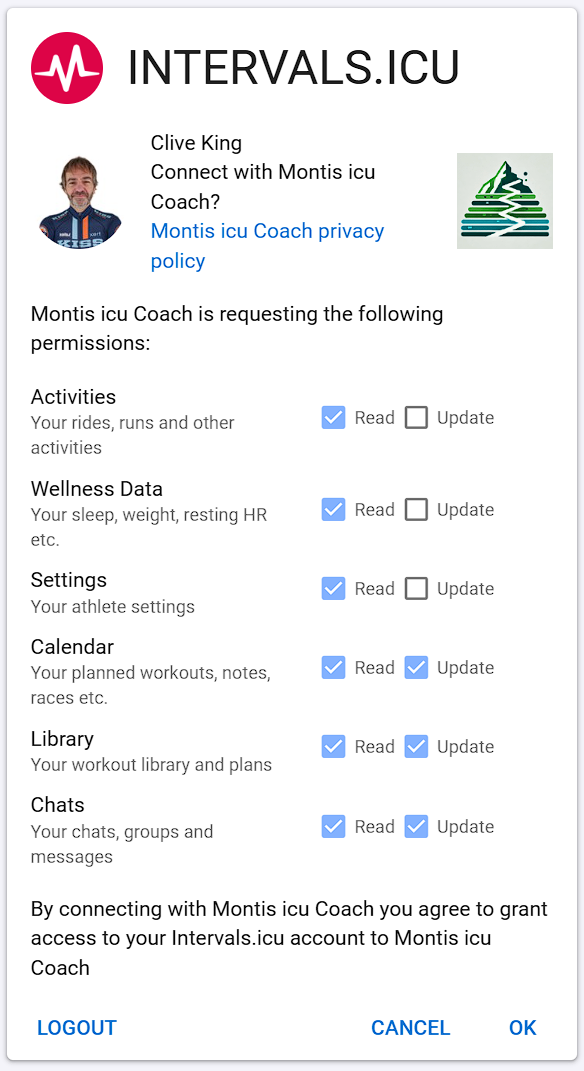
Step 3 — Return to ChatGPT
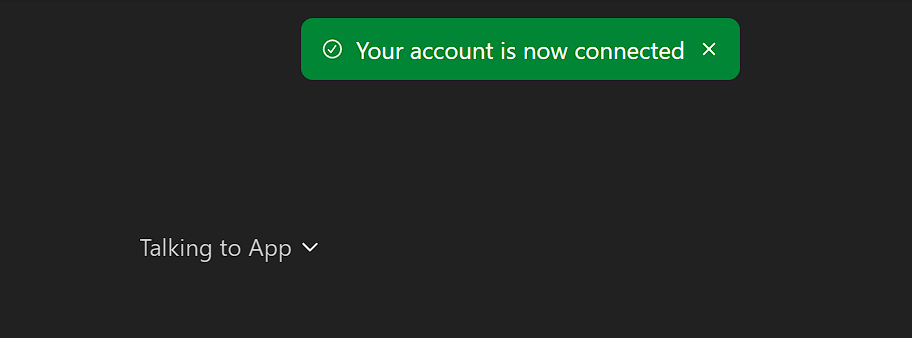
After authorization, you will be redirected back to ChatGPT, it will flash up a green message stating "connected" (this can take up to a minute!, if it fails it will show a red banner briefly).
Step 4 — Run your first report
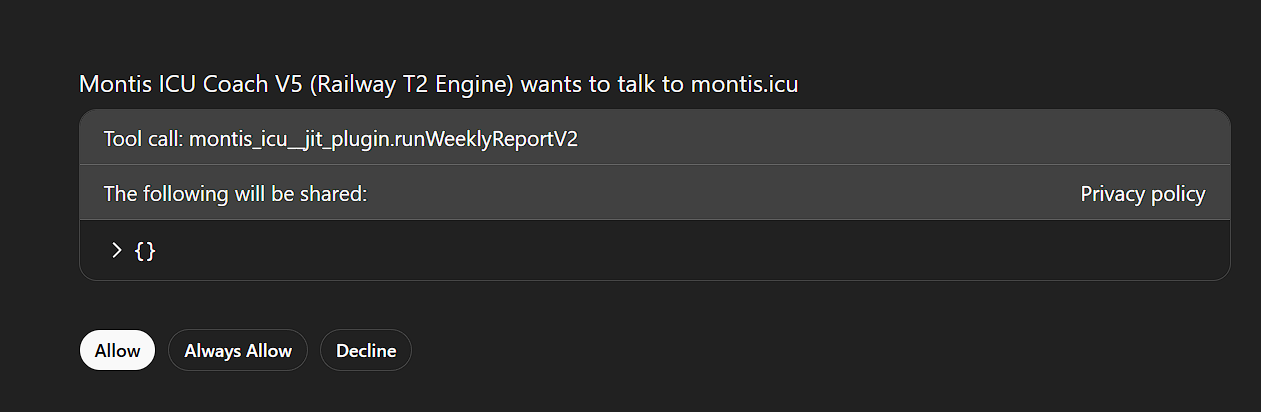
Click always allow to stop this prompt on every request.It will now continue to show your report.
FAQ — ChatGPT / Montis GPT connection issues
If Montis works from the command line, Montis Gemini App, browser tools, or another ChatGPT session but fails inside one ChatGPT Montis GPT chat, the problem is usually ChatGPT chat/tool binding, session state, app state, connector auth state, browser storage, network filtering, VPN/security DNS, or a temporary OpenAI-side issue.
Montis says there is an upstream connection error. What should I try?
-
Start a completely new Montis GPT chat first.
Open the Montis GPT in a brand-new chat and type exactly: Typecheck connectionthenrun weekly report
This rules out stale conversation state or a failed ChatGPT tool/action binding for that specific chat. A new chat can sometimes fix the issue without refreshing the browser tab. -
If that new chat still fails, start one more new Montis GPT chat.
ChatGPT can occasionally fail to attach the tool runtime correctly to a single new chat. If the second fresh chat works, the issue was almost certainly ChatGPT chat/tool runtime state, not Montis. -
Refresh the ChatGPT browser tab.
If repeated new chats fail, refresh the browser tab and open Montis GPT again. This resets more of ChatGPT's browser-side app/runtime state than simply starting a new chat. -
Use the browser instead of the ChatGPT app.
Go tochatgpt.comin Chrome, Edge, or Safari and run the same command. This separates a ChatGPT app issue from an account/tool issue. -
Try an incognito/private window.
Log in to ChatGPT, open the Montis GPT, and run:run weekly report
This rules out cookies, cache, extensions, and stored app state. -
Try a different network.
Use mobile data or a hotspot instead of home, work, school, corporate Wi-Fi, or filtered networks. This rules out ISP, VPN, DNS, proxy, firewall, or security filtering. -
Disable VPN, proxy, iCloud Private Relay, secure DNS, or filtering tools.
Temporarily turn off VPNs, proxies, iCloud Private Relay, NextDNS, AdGuard, Web Protect, antivirus web filtering, or similar tools. OpenAI lists these as common causes of ChatGPT network, websocket, and response-generation errors. -
Use the default model/mode in a new chat.
Do not continue from an old Thinking, Deep Research, or long-running conversation. Start fresh and use the normal/default ChatGPT mode. -
Run a small Montis action first.
Try:read calendar next 7 days
If the small action works but the weekly report fails, the issue may be related to a heavier ChatGPT action run, payload handling, or timeout behaviour. -
Run check connection first.
If the shared Intervals connection is missing, ChatGPT should trigger the Montis sign-in/reconnect prompt automatically. This rules out stale OAuth/action binding. If it doesn't then:Type
check connection. A successful response means ChatGPT has a valid Montis token and Montis can resolve your shared Intervals.icu connection.
Does this mean Montis itself is down?
Not necessarily. You can check https://status.montis.icu. If the same athlete report works from Montis Gemini App https://geminiapp.montis.icu, from the command line, from browser tools, or from another ChatGPT chat/account/session, then the Montis backend is responding correctly.
In that case, the most likely causes are ChatGPT chat/tool runtime binding, stale conversation state, connector auth binding, app/browser storage, network filtering, or a temporary OpenAI-side execution issue.
What should I send to support if it still fails?
- The exact prompt used, for example:
run weekly report - Whether one new Montis GPT chat failed but another new chat worked
- Whether it fails in the ChatGPT app, browser, or both
- Whether refreshing the ChatGPT tab helps
- Whether incognito/private mode works
- Whether mobile data/hotspot works
- Whether VPN, Private Relay, secure DNS, or filtering tools are enabled
- The approximate date/time of the failed attempt
- The visible ChatGPT error message
Reference: OpenAI Help Center — Troubleshooting ChatGPT Error Messages
🧠 Claude Setup (MCP)
If you use Claude, you can connect Montis directly using Model Context Protocol (MCP).
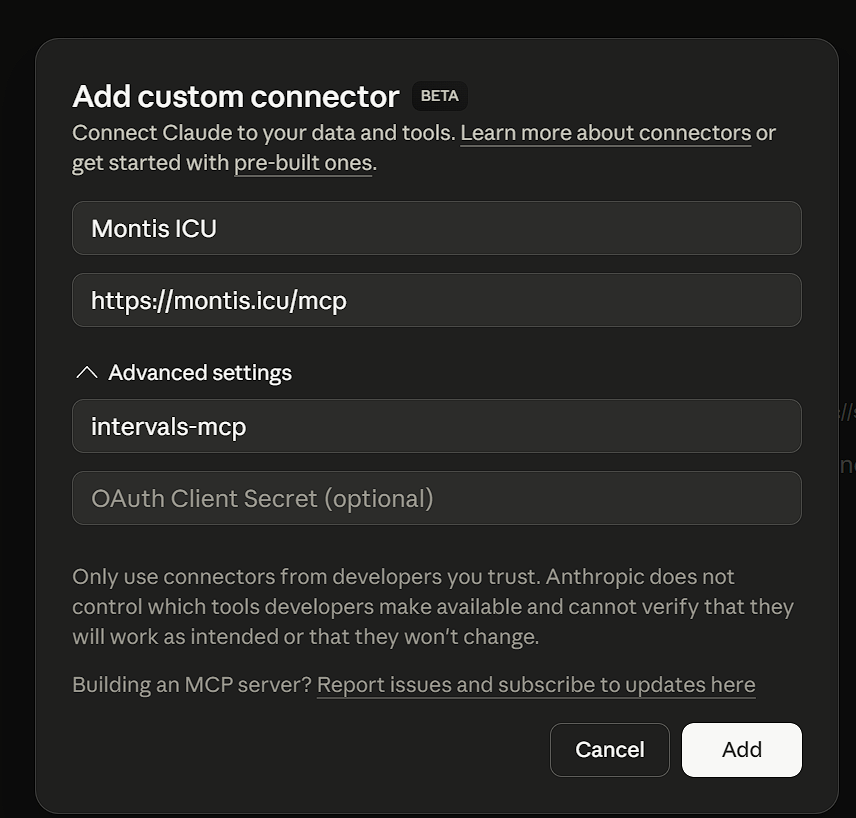
Step 1 — Add Montis MCP Server
{
  "url": "https://montis.icu/mcp",
  "client_id": "intervals-mcp"
}
Add this configuration in your Claude MCP / connector settings.
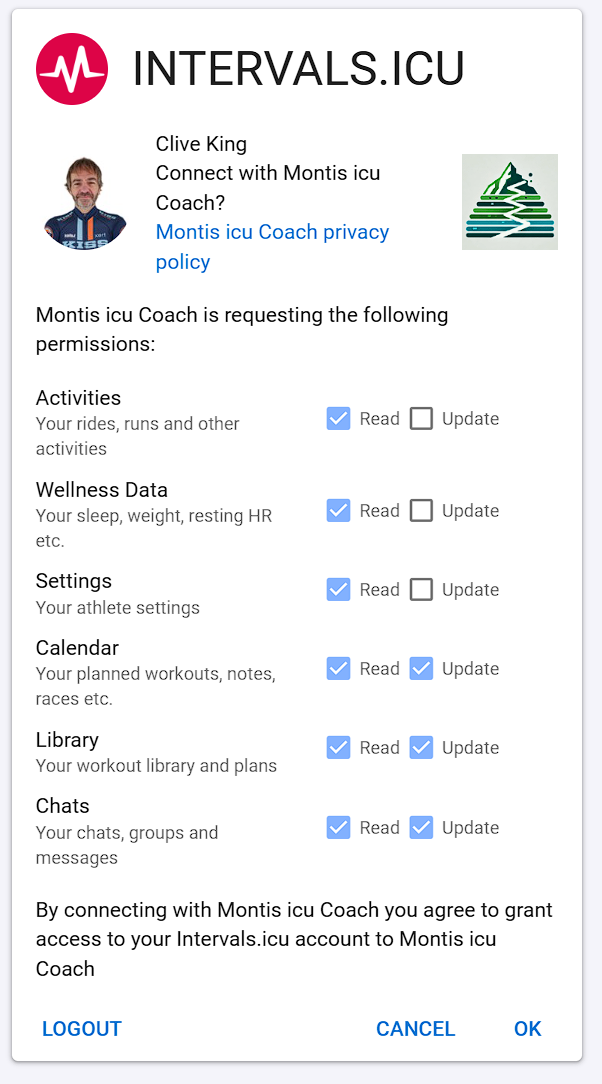
Step 2 — Authorize Intervals.icu
You will be prompted to connect your Intervals.icu account. Approve access to continue.
Step 3 — Use Montis Tools
Once connected, Claude can call Montis tools directly.
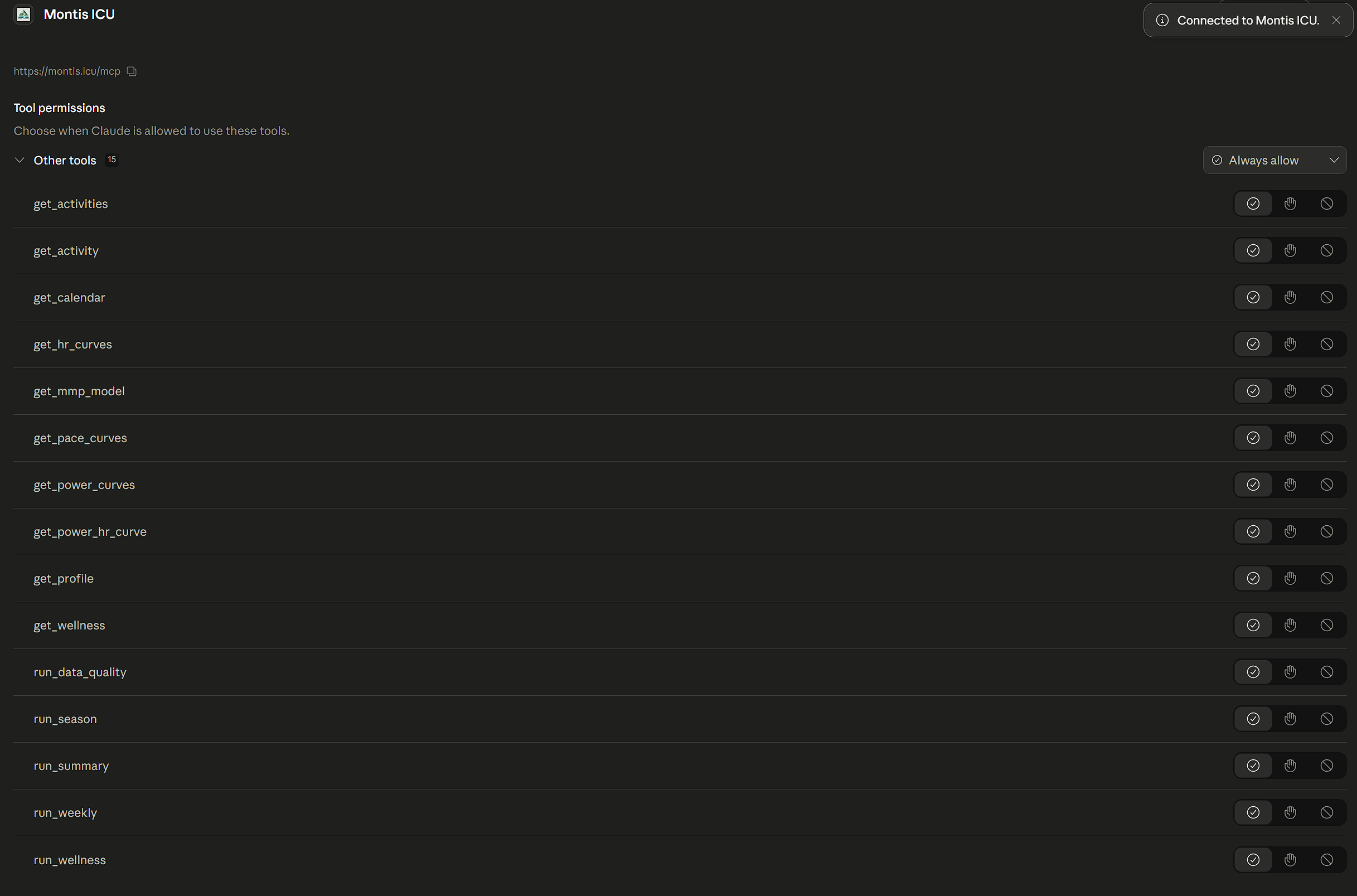
MCP connects Claude directly to the Montis engine — no chat wrapper.
Step 4 — Open new Claude chat
In the chat just ask for any of the tools, like a weekly report. (Different concept to a ChatGPT GPT app), tools are available in any chat.
run Weekly Report
run Wellness Report
get Activity for yesterday
FAQ — Claude AI MCP connection issues
For any issues in Claude AI:
- Go to Settings → Connections (or the integrations/tools panel depending on your client), find the Montis ICU connector, and disconnect then reconnect it. That forces a fresh OAuth token exchange and re-registers the MCP tools.
- If the issue is a stale tool list mid-conversation, starting a new conversation is the most reliable reset — tool schemas are loaded at conversation start.
- To refresh tools in connector goto settings Settings → Connections (or customise → Connections) and click three dots "..." for the connector and click refresh tools list
⚙️ Gemini Setup
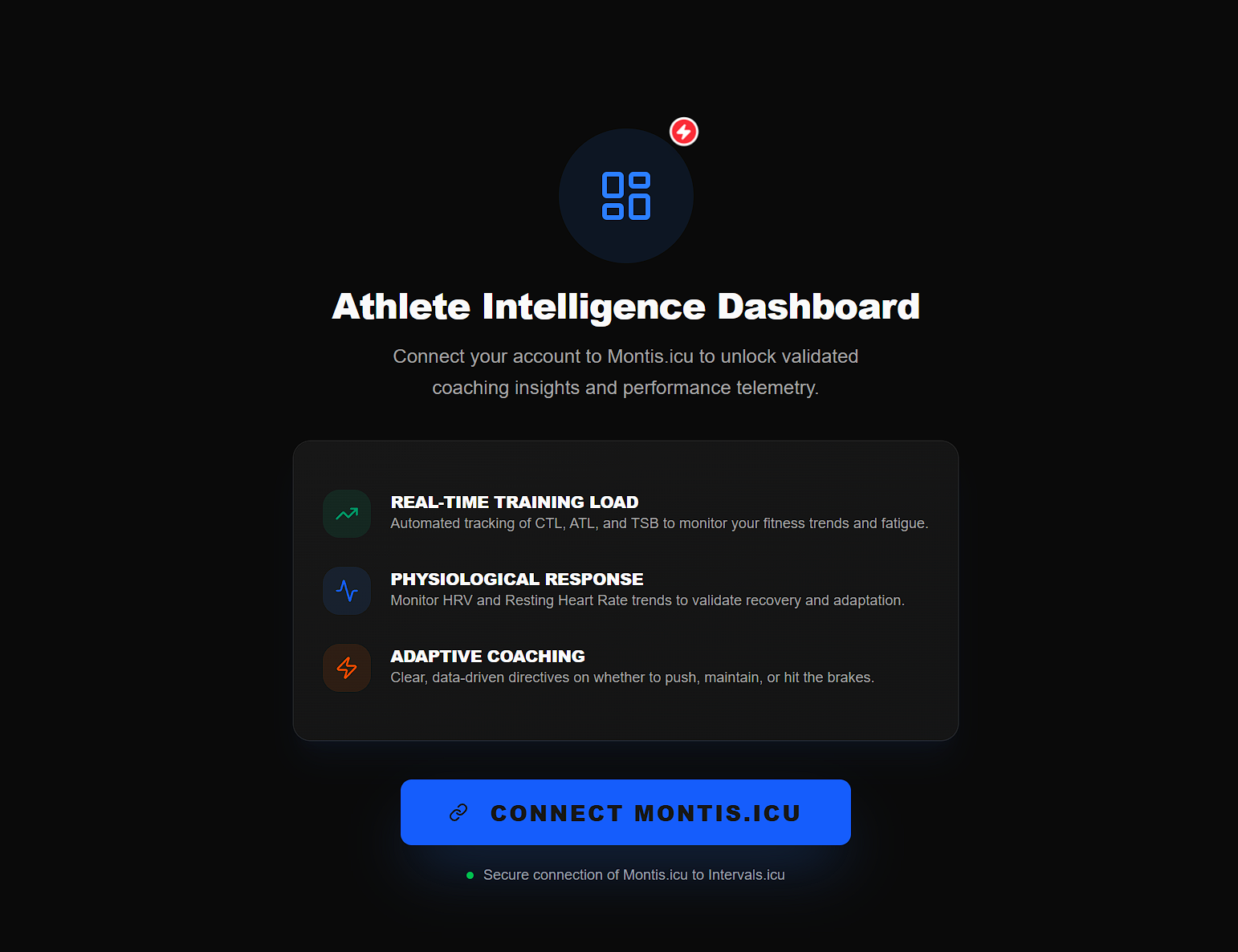
Step 1 — in a web browser (recommeded CHROME, EDGE or BRAVE) goto Gemini App, geminiapp.montis.icu and connect
Step 2 — Authorize Intervals.icu for Montis
You will be prompted to connect your Intervals.icu account. Approve access to continue.
Step 3 — Use Montis App!
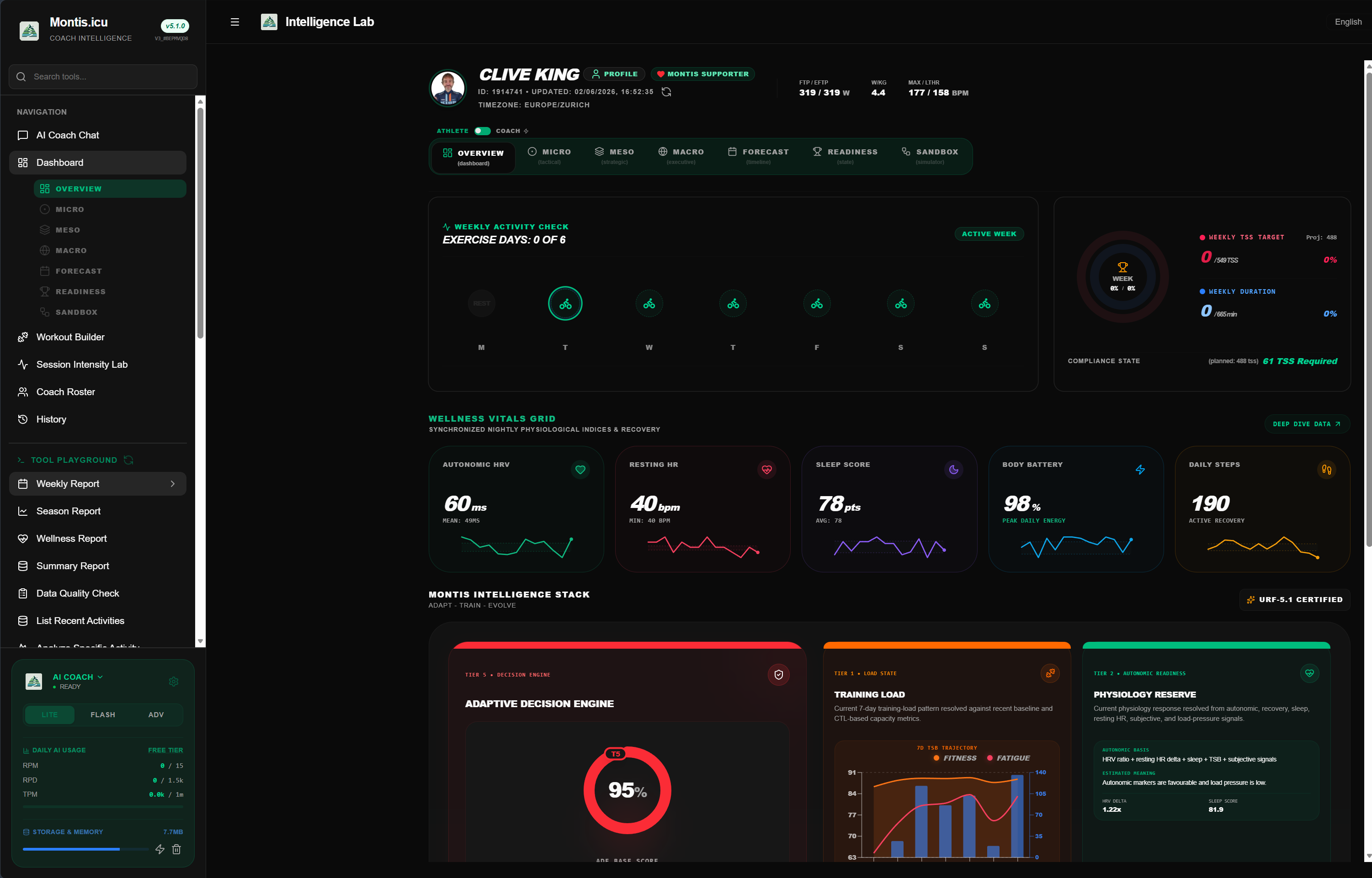
Note: to use Gemini AI in the App you can use a Free Tier (API Key)
Its not required for the dashboard, but is required for AI aspects.
You can generate a free Gemini API key here:
👉
https://aistudio.google.com/app/api-keys
No credit card required. Keys are created instantly and default to the Free Tier and you can track estimated usage in the Montis Gemini App. .
📊 Free Tier Limits (Gemini 3.1 Flash lite)
- Up to 10,000 requests per minute burst capacity (RPM)
- 350,000 requests per day sustained quota (RPD)
- 10 million tokens per minute throughput (TPM)
⏱️ How Limits Reset
- Minute limits (RPM / TPM): Sliding window — capacity returns gradually within ~60 seconds.
- Daily limit (RPD): Resets every 24 hours (typically midnight Pacific Time).
🔐 Important: Data Usage
- Free tier: Google may use your prompts and responses to improve models.
- Paid tier: Your data is not used for training.
📎 Full Pricing & Limits
See official comparison here:
👉
https://ai.google.dev/pricing
⚠️ Common Setup Issues
Athlete profile missing or account not connected
This means the OAuth connection was not completed.
- Reopen the Coach link above and start with step 1. Try a different web browser or clear cache/cookies if you are having issues
- Click sign in to connect Intervals.icu
- Approve Intervals.icu authorization when prompted
- In ChatGPT, click Always allow only for Montis tool calls if you want to avoid repeated tool prompts
- Run
check connection - Run the report again
STRAVA activities are not available via the API
This means your activities exist only in Strava, and Intervals cannot access the required training metrics.
To fix this, connect a direct recording source:
- Garmin
- Wahoo
- Zwift
- TrainerRoad
- Upload FIT files directly
Explanation: Why Strava-only accounts don’t work →
📊 Data Requirements
The coach works best when your account has:
- Activities with time, distance, and training load
- A connected device or training platform
- Optional wellness data for recovery analysis
🧪 Run a Data Quality Check
If your report looks incorrect, empty, or missing activities, run a quick data quality audit.
After you have connected. In ChatGPT or Claude, type:
run data quality reportThis report checks:
- If your athlete profile is connected correctly
- If activities are available
- If training load, heart rate, and power data exist
- If wellness data is present
- If any sources are missing or incomplete
The report will return a data quality score and highlight actions to fix any issues.
For a demo ask "run a weekly report demo test". This will return a sample demo report.